

To use the Glofox API, you need to request access from the ABC Fitness Developer Portal. This guide walks you through signing up and requesting access for the Sandbox and Live environments.
Prerequisites
- A work email address
- Your business or studio name, Branch IDs/Locations IDs or namespace if you know them, and a short description of your integration use case
API overview
Glofox's API uses the REST protocol. The API enables external applications to access, create, and edit users, memberships, credits, classes, bookings & payments. Each endpoint returns JSON responses.
Include these headers in every API call:
x-glofox-branch-id(required on all endpoints exceptPOST /v3.0/locations/retrieve)x-api-keyx-glofox-api-token
POST /v3.0/locations/retrieve does not require x-glofox-branch-id. It returns locations from the integrator token (assigned locations or namespaces).
Sign up to the ABC Fitness Developer Portal
If you don't have an account yet, follow these steps to create an account:
- Go to the ABC Fitness Developer Portal.
- Click Sign up, or open Sign up directly.
- Fill in the form:
- Select Customer or Partner for Account Type.
- For Business / Studio, fill in the name of your studio.
- For Contact Name, fill in the name of the person who is the contact for the API.
- For Business email, fill in the email of the person who is the contact for the API.
- For Password choose a strong password and confirm it.
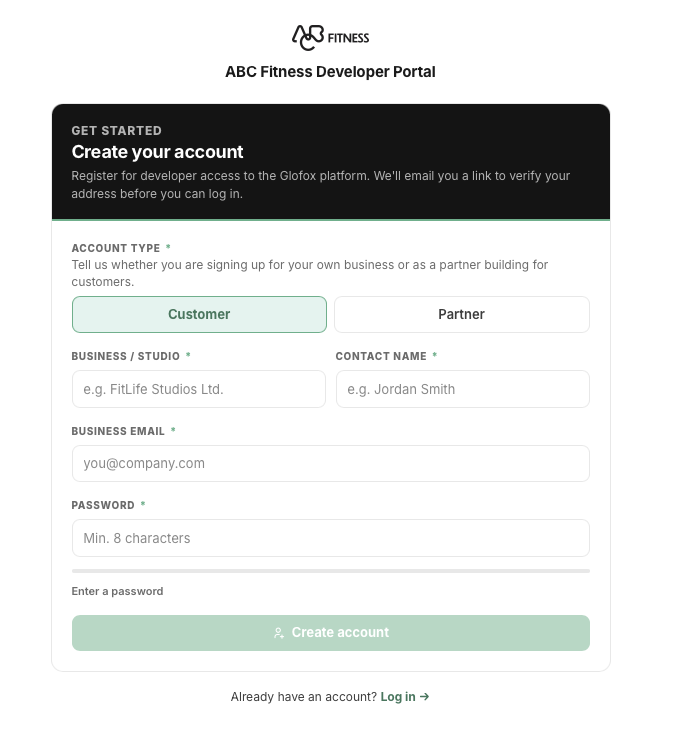
- Click the Create Account button.
- After you submit the form, you receive an email to confirm your account. Click the link in the email to confirm your account. The confirmation link opens the ABC Fitness Developer Portal login page.
- Log in with the email and password you chose previously.
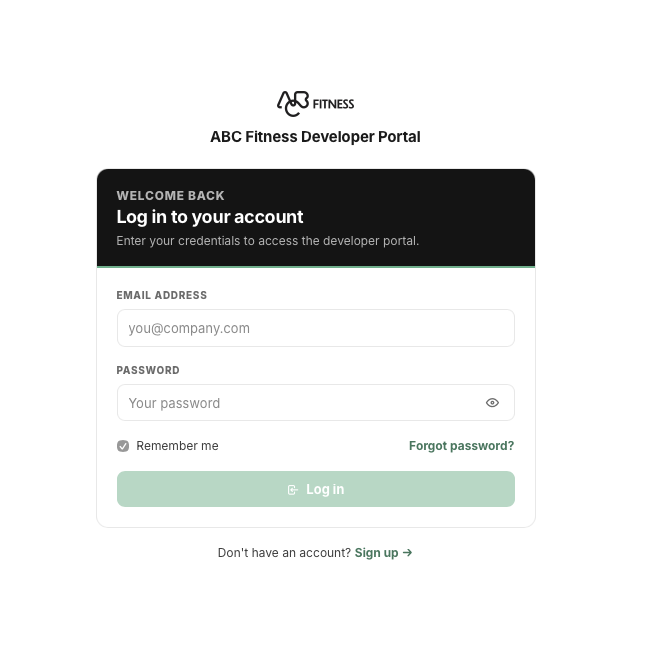
After you log in, the ABC Fitness Developer Portal documentation page opens. To access the developer portal dashboard, click the ABC Fitness Developer Portal button.
Request access for the Sandbox environment
To request Sandbox access, follow these steps:
- Go to the ABC Fitness Developer Portal.
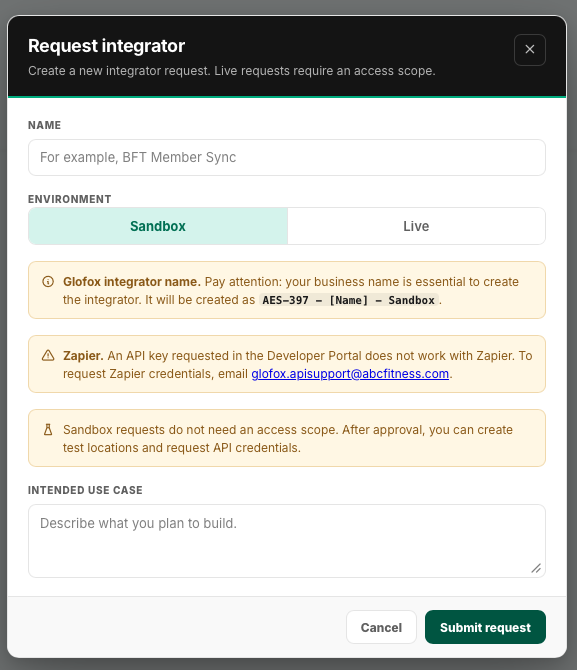
- On the ABC Fitness Developer Portal dashboard, click the Request Integrator button.
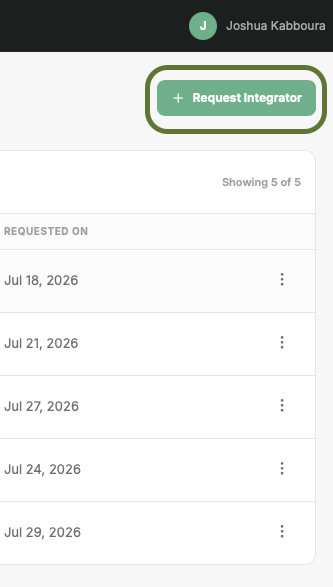
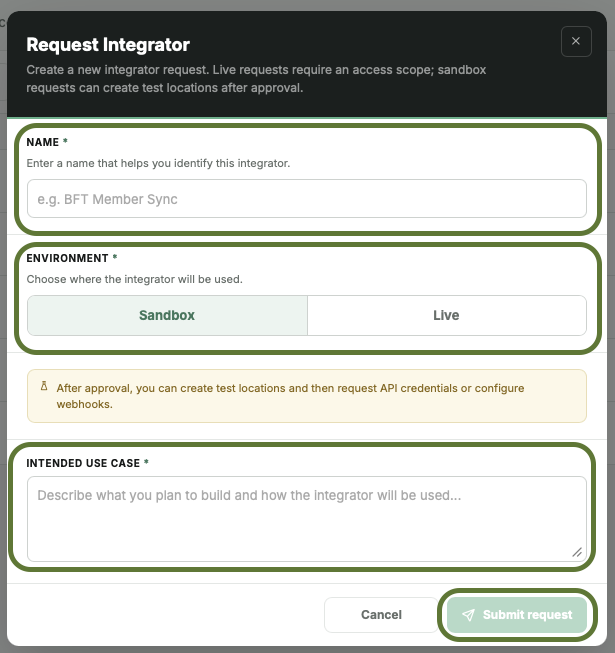
- On the Request Integrator modal, fill in the form:
- For Name, fill in the name of the integrator.
- For the Environment, select Sandbox.
- For the Intended Use Case, describe the use case of the API.
- Click the Submit request button.
How to create a test location
Once you have requested access for the Sandbox environment, you can create a test location to test your integration.
To create a test location, follow these steps:
- Go to the ABC Fitness Developer Portal.
- On the ABC Fitness Developer Portal dashboard, select the integrator you requested access for.
- On the Integrator drawer, click the Create test location button.
- On the Create test location modal:
- For Test location password, create a password for the test location dashboard. This password is only for the test location. It does not change your developer portal password.
- Click the Create Location button.
The portal names locations {integrator name} - demo - 1 and {integrator name} - demo - 2. It uses your portal name and email for the test location administrator.
After you click the Create Location button, the process to spin up a test location starts. This process usually takes less than a minute.
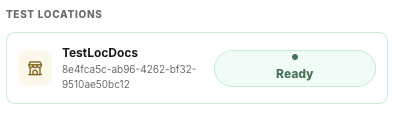
How to request test location credentials
Once you have created a test location, you can request the credentials to access the location. To request the credentials, follow these steps:
- Go to the ABC Fitness Developer Portal
- On the ABC Fitness Developer Portal dashboard, select the integrator you requested access for
- On the Integrator drawer, click the Request credentials button
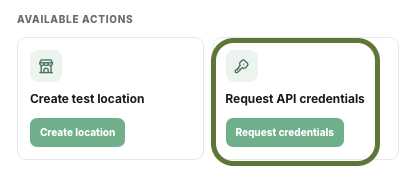
The portal sends the credentials to your portal email address.
Request access for the Live environment
To request Live access, follow these steps:
- Go to the ABC Fitness Developer Portal.
- On the ABC Fitness Developer Portal dashboard, click the Request Integrator button.
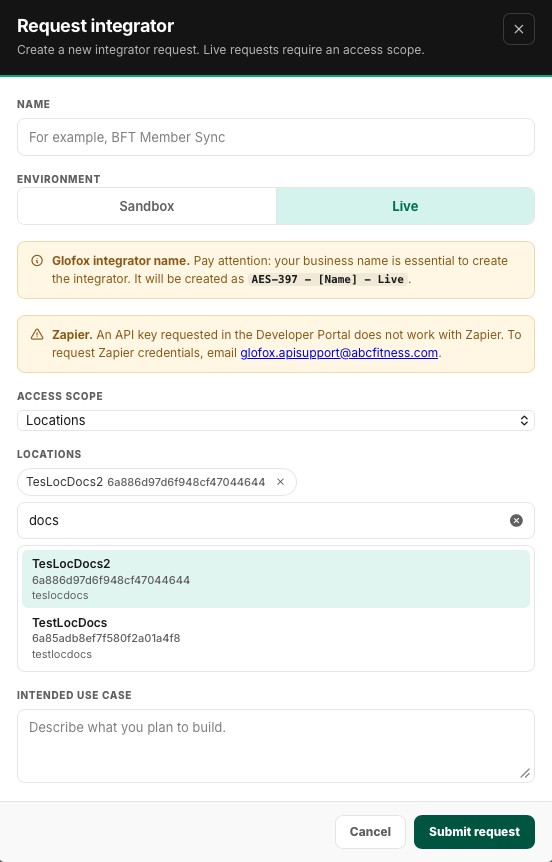
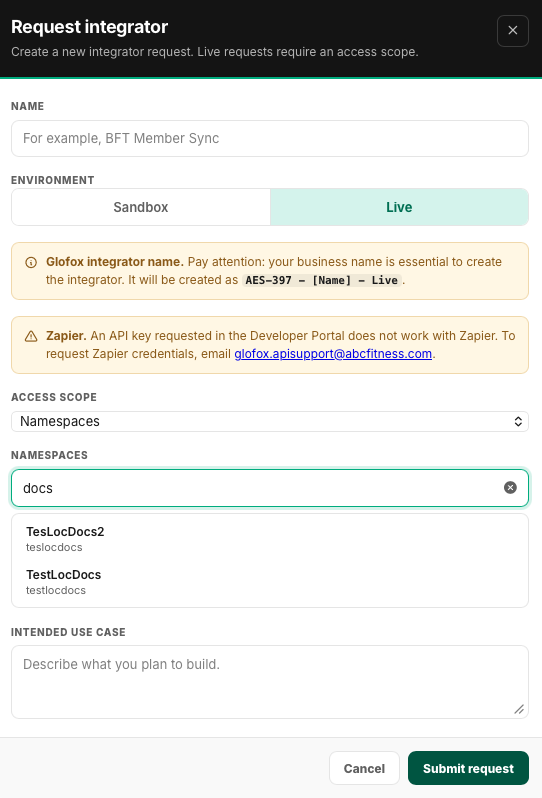
- On the Request Integrator modal, fill in the form:
- For Name, fill in the name of the partner.
- For the Environment, select Live.
- You can choose between Locations or Namespace, fill in the locations IDs, location names or the namespace of the API, according to your use case:
- Locations: if you want to use the API for a specific location, you can select the location from the dropdown menu.
- Namespace: if you want to use the API for a specific namespace, you can enter the namespace in the text field.
- For the Intended Use Case, describe the use case of the API.
- Click the Submit request button.
How to request Live credentials
Once you have requested access for the Live environment, you can request the credentials to access the locations or namespace. To request the credentials, follow these steps:
- Go to the ABC Fitness Developer Portal
- On the ABC Fitness Developer Portal dashboard, select the integrator you requested access for
- On the Integrator drawer, click the Request credentials button
The portal sends the credentials to your portal email address.
How to track the request status
To track a request, follow these steps:
- Go to the ABC Fitness Developer Portal.
- Open the ABC Fitness Developer Portal dashboard.
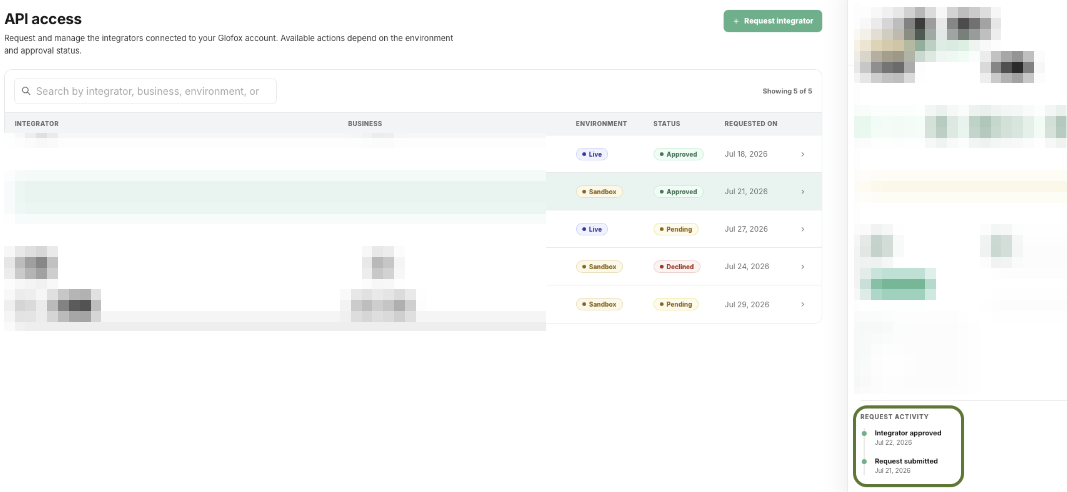
- On the home page, you see all the requests you have made.
- To view the request status, click the request you want to track to open the request details.
How to contest a declined request
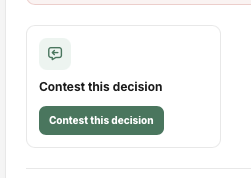
If the ABC Fitness team declines your request, click Contest this decision.
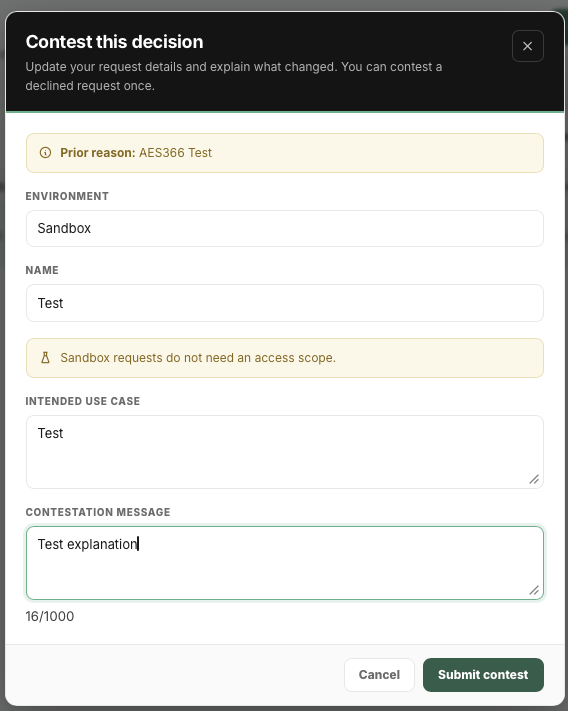
On the Contest request modal, fill in the form with the information the ABC Fitness team requests. In Contestation message, explain what you contest and what you changed to address the issue.
Important notes
Use the API key and token only for backend integrations, not in browsers. If you need to use this API key, proxy requests through your backend so it makes the authenticated call to the API Gateway and keeps the key and token private.
Regarding timestamps, most of the API uses UTC. When a field uses the "local" timezone, it refers to the current location time for that branch.
When requesting API access, you can request a Zapier integration token on the same form or later from the Request access page if you didn't include it on your first submission. The API token and Zapier integration token are different credentials. Request each through the portal when you need it.
Request webhook access
Webhook access isn't granted through the ABC Fitness Developer Portal. To enable webhooks for your integration:
- Read the Webhooks guide for timeouts, retries, and signature validation.
- Review available webhook payloads in the API Reference.
- Contact [email protected] to request webhook configuration.
Webhooks request email template
When you request webhook access, include the following information:
Subject: Webhooks Setup Request

Business / Studio name:
Contact name & email:
Branch ID(s) / Namespace (if known):
Environments required (Production / Staging + Production):
Target start date:
Webhook event domains and their callback URLs. Example:
  BOOKINGS: https://mydomain.com/webhooks/bookings;
  MEMBERSHIPS: https://mydomain.com/webhooks/memberships